

How Do I Cancel A Member's Account?
Last modified by Isaac Mejia on 2026/06/08 20:03
Last updated on June 08, 2026
Go to Member Management
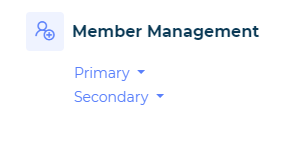
On the Operations page, choose Primary or Secondary based on which type of account needs to be cancelled.
Cancel a Member
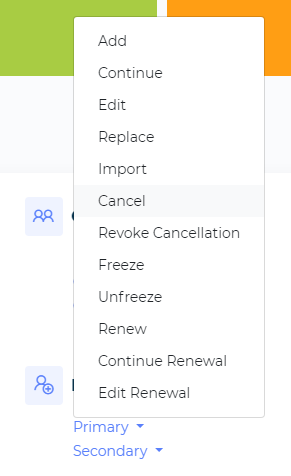
Choose Cancelfrom the drop down list.
Find Member
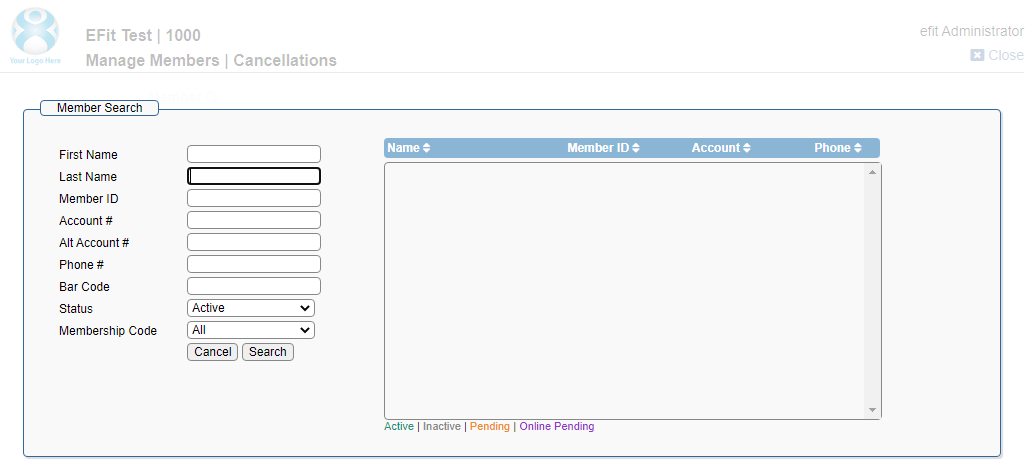
Look up the specific member or account. Click on the member.
Choosing the Primary

If you’re cancelling a Primary account you will get a warning reminding you that cancelling the Primary cancels all Secondary members on the account as well.
Continue With Account
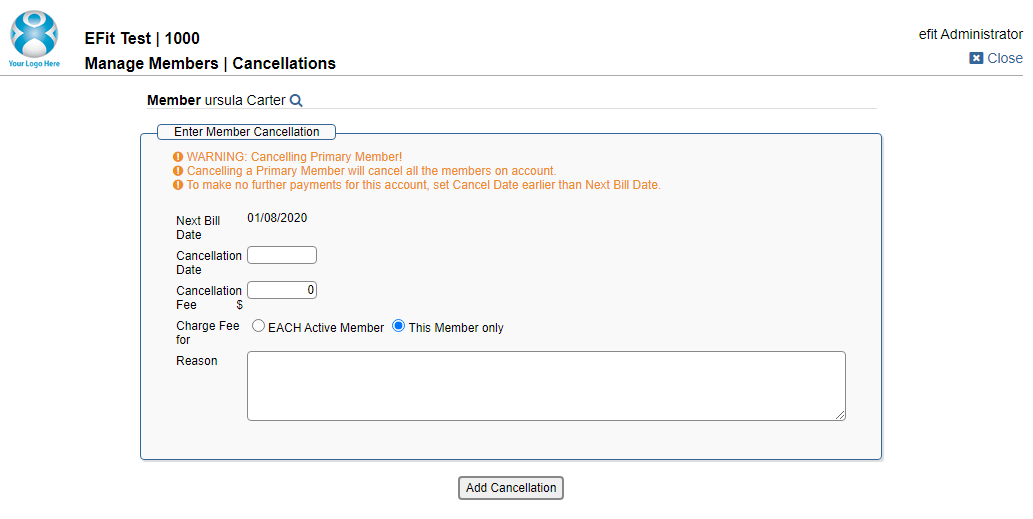
- Cancellation fee defaults to today's date. Can be pushed to a future date.
- Cancellation fee is not required but can be set for just one account or all accounts tied to the membership.
- Reason is required and will be notated on the account.
Hit Add Cancellation after filling out the information to submit the cancellation.