Failed to execute the [velocity] macro. Cause: [The execution of the [velocity] script macro is not allowed in [efit:KBArticleHeader.WebHome]. Check the rights of its last author or the parameters if it's rendered from another script.]. Click on this message for details.
org.xwiki.rendering.macro.MacroExecutionException: The execution of the [velocity] script macro is not allowed in [efit:KBArticleHeader.WebHome]. Check the rights of its last author or the parameters if it's rendered from another script.
at org.xwiki.rendering.macro.script.AbstractScriptMacro.execute(AbstractScriptMacro.java:178)
at org.xwiki.rendering.macro.script.AbstractScriptMacro.execute(AbstractScriptMacro.java:58)
at org.xwiki.rendering.internal.transformation.macro.MacroTransformation.transform(MacroTransformation.java:441)
at org.xwiki.rendering.internal.transformation.DefaultRenderingContext.transformInContext(DefaultRenderingContext.java:183)
at org.xwiki.rendering.internal.transformation.DefaultTransformationManager.performTransformations(DefaultTransformationManager.java:88)
at org.xwiki.display.internal.DocumentContentAsyncExecutor.executeInCurrentExecutionContext(DocumentContentAsyncExecutor.java:396)
at org.xwiki.display.internal.DocumentContentAsyncExecutor.execute(DocumentContentAsyncExecutor.java:269)
at org.xwiki.display.internal.DocumentContentAsyncRenderer.execute(DocumentContentAsyncRenderer.java:112)
at org.xwiki.rendering.async.internal.block.AbstractBlockAsyncRenderer.render(AbstractBlockAsyncRenderer.java:157)
at org.xwiki.rendering.async.internal.block.AbstractBlockAsyncRenderer.render(AbstractBlockAsyncRenderer.java:54)
at org.xwiki.rendering.async.internal.DefaultAsyncRendererExecutor.syncRender(DefaultAsyncRendererExecutor.java:290)
at org.xwiki.rendering.async.internal.DefaultAsyncRendererExecutor.render(DefaultAsyncRendererExecutor.java:267)
at org.xwiki.rendering.async.internal.block.DefaultBlockAsyncRendererExecutor.execute(DefaultBlockAsyncRendererExecutor.java:125)
at org.xwiki.display.internal.DocumentContentDisplayer.display(DocumentContentDisplayer.java:93)
at org.xwiki.display.internal.DocumentContentDisplayer.display(DocumentContentDisplayer.java:46)
at org.xwiki.display.internal.DefaultDocumentDisplayer.display(DefaultDocumentDisplayer.java:96)
at org.xwiki.display.internal.DefaultDocumentDisplayer.display(DefaultDocumentDisplayer.java:39)
at org.xwiki.sheet.internal.SheetDocumentDisplayer.display(SheetDocumentDisplayer.java:123)
at org.xwiki.sheet.internal.SheetDocumentDisplayer.display(SheetDocumentDisplayer.java:52)
at org.xwiki.display.internal.ConfiguredDocumentDisplayer.display(ConfiguredDocumentDisplayer.java:68)
at org.xwiki.display.internal.ConfiguredDocumentDisplayer.display(ConfiguredDocumentDisplayer.java:42)
at com.xpn.xwiki.doc.XWikiDocument.display(XWikiDocument.java:1431)
at com.xpn.xwiki.doc.XWikiDocument.getRenderedContent(XWikiDocument.java:1567)
at com.xpn.xwiki.doc.XWikiDocument.displayDocument(XWikiDocument.java:1517)
at com.xpn.xwiki.doc.XWikiDocument.displayDocument(XWikiDocument.java:1486)
at com.xpn.xwiki.api.Document.displayDocument(Document.java:821)
at java.base/jdk.internal.reflect.DirectMethodHandleAccessor.invoke(Unknown Source)
at java.base/java.lang.reflect.Method.invoke(Unknown Source)
at org.apache.velocity.util.introspection.UberspectImpl$VelMethodImpl.doInvoke(UberspectImpl.java:571)
at org.apache.velocity.util.introspection.UberspectImpl$VelMethodImpl.invoke(UberspectImpl.java:554)
at org.apache.velocity.runtime.parser.node.ASTMethod.execute(ASTMethod.java:221)
at org.apache.velocity.runtime.parser.node.ASTReference.execute(ASTReference.java:368)
at org.apache.velocity.runtime.parser.node.ASTReference.value(ASTReference.java:704)
at org.apache.velocity.runtime.parser.node.ASTExpression.value(ASTExpression.java:75)
at org.apache.velocity.runtime.parser.node.ASTSetDirective.render(ASTSetDirective.java:242)
at org.apache.velocity.runtime.parser.node.ASTBlock.render(ASTBlock.java:147)
at org.apache.velocity.runtime.parser.node.SimpleNode.render(SimpleNode.java:439)
at org.apache.velocity.runtime.parser.node.ASTIfStatement.render(ASTIfStatement.java:190)
at org.apache.velocity.runtime.parser.node.ASTBlock.render(ASTBlock.java:147)
at org.xwiki.velocity.internal.directive.TryCatchDirective.render(TryCatchDirective.java:86)
at org.apache.velocity.runtime.parser.node.ASTDirective.render(ASTDirective.java:304)
at org.apache.velocity.runtime.parser.node.SimpleNode.render(SimpleNode.java:439)
at org.apache.velocity.Template.merge(Template.java:358)
at org.apache.velocity.Template.merge(Template.java:262)
at org.xwiki.velocity.internal.InternalVelocityEngine.evaluate(InternalVelocityEngine.java:233)
at com.xpn.xwiki.internal.template.VelocityTemplateEvaluator.evaluateContent(VelocityTemplateEvaluator.java:107)
at com.xpn.xwiki.internal.template.TemplateAsyncRenderer.evaluateContent(TemplateAsyncRenderer.java:219)
at com.xpn.xwiki.internal.template.TemplateAsyncRenderer.renderVelocity(TemplateAsyncRenderer.java:174)
at com.xpn.xwiki.internal.template.TemplateAsyncRenderer.render(TemplateAsyncRenderer.java:135)
at com.xpn.xwiki.internal.template.TemplateAsyncRenderer.render(TemplateAsyncRenderer.java:54)
at org.xwiki.rendering.async.internal.DefaultAsyncRendererExecutor.lambda$syncRender$0(DefaultAsyncRendererExecutor.java:284)
at com.xpn.xwiki.internal.security.authorization.DefaultAuthorExecutor.call(DefaultAuthorExecutor.java:98)
at org.xwiki.rendering.async.internal.DefaultAsyncRendererExecutor.syncRender(DefaultAsyncRendererExecutor.java:284)
at org.xwiki.rendering.async.internal.DefaultAsyncRendererExecutor.render(DefaultAsyncRendererExecutor.java:267)
at org.xwiki.rendering.async.internal.block.DefaultBlockAsyncRendererExecutor.render(DefaultBlockAsyncRendererExecutor.java:154)
at com.xpn.xwiki.internal.template.InternalTemplateManager.render(InternalTemplateManager.java:907)
at com.xpn.xwiki.internal.template.InternalTemplateManager.renderFromSkin(InternalTemplateManager.java:869)
at com.xpn.xwiki.internal.template.InternalTemplateManager.render(InternalTemplateManager.java:856)
at com.xpn.xwiki.internal.template.InternalTemplateManager.renderNoException(InternalTemplateManager.java:811)
at com.xpn.xwiki.internal.template.InternalTemplateManager.renderNoException(InternalTemplateManager.java:803)
at com.xpn.xwiki.internal.template.DefaultTemplateManager.renderNoException(DefaultTemplateManager.java:79)
at com.xpn.xwiki.internal.template.DefaultTemplateManager.renderNoException(DefaultTemplateManager.java:73)
at org.xwiki.template.script.TemplateScriptService.render(TemplateScriptService.java:54)
at java.base/jdk.internal.reflect.DirectMethodHandleAccessor.invoke(Unknown Source)
at java.base/java.lang.reflect.Method.invoke(Unknown Source)
at org.apache.velocity.util.introspection.UberspectImpl$VelMethodImpl.doInvoke(UberspectImpl.java:571)
at org.apache.velocity.util.introspection.UberspectImpl$VelMethodImpl.invoke(UberspectImpl.java:554)
at org.apache.velocity.runtime.parser.node.ASTMethod.execute(ASTMethod.java:221)
at org.apache.velocity.runtime.parser.node.ASTReference.execute(ASTReference.java:368)
at org.apache.velocity.runtime.parser.node.ASTReference.render(ASTReference.java:492)
at org.apache.velocity.runtime.parser.node.ASTBlock.render(ASTBlock.java:147)
at org.apache.velocity.runtime.directive.VelocimacroProxy.render(VelocimacroProxy.java:217)
at org.apache.velocity.runtime.directive.RuntimeMacro.render(RuntimeMacro.java:331)
at org.apache.velocity.runtime.directive.RuntimeMacro.render(RuntimeMacro.java:261)
at org.apache.velocity.runtime.parser.node.ASTDirective.render(ASTDirective.java:304)
at org.apache.velocity.runtime.parser.node.SimpleNode.render(SimpleNode.java:439)
at org.apache.velocity.Template.merge(Template.java:358)
at org.apache.velocity.Template.merge(Template.java:262)
at org.xwiki.velocity.internal.InternalVelocityEngine.evaluate(InternalVelocityEngine.java:233)
at com.xpn.xwiki.internal.template.VelocityTemplateEvaluator.evaluateContent(VelocityTemplateEvaluator.java:107)
at com.xpn.xwiki.internal.template.TemplateAsyncRenderer.evaluateContent(TemplateAsyncRenderer.java:219)
at com.xpn.xwiki.internal.template.TemplateAsyncRenderer.renderVelocity(TemplateAsyncRenderer.java:174)
at com.xpn.xwiki.internal.template.TemplateAsyncRenderer.render(TemplateAsyncRenderer.java:135)
at com.xpn.xwiki.internal.template.TemplateAsyncRenderer.render(TemplateAsyncRenderer.java:54)
at org.xwiki.rendering.async.internal.DefaultAsyncRendererExecutor.lambda$syncRender$0(DefaultAsyncRendererExecutor.java:284)
at com.xpn.xwiki.internal.security.authorization.DefaultAuthorExecutor.call(DefaultAuthorExecutor.java:98)
at org.xwiki.rendering.async.internal.DefaultAsyncRendererExecutor.syncRender(DefaultAsyncRendererExecutor.java:284)
at org.xwiki.rendering.async.internal.DefaultAsyncRendererExecutor.render(DefaultAsyncRendererExecutor.java:267)
at org.xwiki.rendering.async.internal.block.DefaultBlockAsyncRendererExecutor.render(DefaultBlockAsyncRendererExecutor.java:154)
at com.xpn.xwiki.internal.template.InternalTemplateManager.render(InternalTemplateManager.java:907)
at com.xpn.xwiki.internal.template.InternalTemplateManager.renderFromSkin(InternalTemplateManager.java:869)
at com.xpn.xwiki.internal.template.InternalTemplateManager.render(InternalTemplateManager.java:856)
at com.xpn.xwiki.internal.template.InternalTemplateManager.renderNoException(InternalTemplateManager.java:811)
at com.xpn.xwiki.internal.template.InternalTemplateManager.renderNoException(InternalTemplateManager.java:803)
at com.xpn.xwiki.internal.template.DefaultTemplateManager.renderNoException(DefaultTemplateManager.java:79)
at com.xpn.xwiki.internal.template.DefaultTemplateManager.renderNoException(DefaultTemplateManager.java:73)
at org.xwiki.template.script.TemplateScriptService.render(TemplateScriptService.java:54)
at java.base/jdk.internal.reflect.DirectMethodHandleAccessor.invoke(Unknown Source)
at java.base/java.lang.reflect.Method.invoke(Unknown Source)
at org.apache.velocity.util.introspection.UberspectImpl$VelMethodImpl.doInvoke(UberspectImpl.java:571)
at org.apache.velocity.util.introspection.UberspectImpl$VelMethodImpl.invoke(UberspectImpl.java:554)
at org.apache.velocity.runtime.parser.node.ASTMethod.execute(ASTMethod.java:221)
at org.apache.velocity.runtime.parser.node.ASTReference.execute(ASTReference.java:368)
at org.apache.velocity.runtime.parser.node.ASTReference.render(ASTReference.java:492)
at org.apache.velocity.runtime.parser.node.ASTBlock.render(ASTBlock.java:147)
at org.apache.velocity.runtime.directive.VelocimacroProxy.render(VelocimacroProxy.java:217)
at org.apache.velocity.runtime.directive.RuntimeMacro.render(RuntimeMacro.java:331)
at org.apache.velocity.runtime.directive.RuntimeMacro.render(RuntimeMacro.java:261)
at org.apache.velocity.runtime.parser.node.ASTDirective.render(ASTDirective.java:304)
at org.apache.velocity.runtime.parser.node.ASTBlock.render(ASTBlock.java:147)
at org.apache.velocity.runtime.parser.node.ASTIfStatement.render(ASTIfStatement.java:171)
at org.apache.velocity.runtime.parser.node.ASTBlock.render(ASTBlock.java:147)
at org.apache.velocity.runtime.parser.node.SimpleNode.render(SimpleNode.java:439)
at org.apache.velocity.runtime.parser.node.ASTIfStatement.render(ASTIfStatement.java:190)
at org.apache.velocity.runtime.parser.node.SimpleNode.render(SimpleNode.java:439)
at org.apache.velocity.Template.merge(Template.java:358)
at org.apache.velocity.Template.merge(Template.java:262)
at org.xwiki.velocity.internal.InternalVelocityEngine.evaluate(InternalVelocityEngine.java:233)
at com.xpn.xwiki.internal.template.VelocityTemplateEvaluator.evaluateContent(VelocityTemplateEvaluator.java:107)
at com.xpn.xwiki.internal.template.TemplateAsyncRenderer.evaluateContent(TemplateAsyncRenderer.java:219)
at com.xpn.xwiki.internal.template.TemplateAsyncRenderer.renderVelocity(TemplateAsyncRenderer.java:174)
at com.xpn.xwiki.internal.template.TemplateAsyncRenderer.render(TemplateAsyncRenderer.java:135)
at com.xpn.xwiki.internal.template.TemplateAsyncRenderer.render(TemplateAsyncRenderer.java:54)
at org.xwiki.rendering.async.internal.DefaultAsyncRendererExecutor.lambda$syncRender$0(DefaultAsyncRendererExecutor.java:284)
at com.xpn.xwiki.internal.security.authorization.DefaultAuthorExecutor.call(DefaultAuthorExecutor.java:98)
at org.xwiki.rendering.async.internal.DefaultAsyncRendererExecutor.syncRender(DefaultAsyncRendererExecutor.java:284)
at org.xwiki.rendering.async.internal.DefaultAsyncRendererExecutor.render(DefaultAsyncRendererExecutor.java:267)
at org.xwiki.rendering.async.internal.block.DefaultBlockAsyncRendererExecutor.render(DefaultBlockAsyncRendererExecutor.java:154)
at com.xpn.xwiki.internal.template.InternalTemplateManager.render(InternalTemplateManager.java:907)
at com.xpn.xwiki.internal.template.InternalTemplateManager.renderFromSkin(InternalTemplateManager.java:869)
at com.xpn.xwiki.internal.template.InternalTemplateManager.render(InternalTemplateManager.java:856)
at com.xpn.xwiki.internal.template.InternalTemplateManager.renderNoException(InternalTemplateManager.java:811)
at com.xpn.xwiki.internal.template.InternalTemplateManager.renderNoException(InternalTemplateManager.java:803)
at com.xpn.xwiki.internal.template.DefaultTemplateManager.renderNoException(DefaultTemplateManager.java:79)
at com.xpn.xwiki.internal.template.DefaultTemplateManager.renderNoException(DefaultTemplateManager.java:73)
at org.xwiki.template.script.TemplateScriptService.render(TemplateScriptService.java:54)
at java.base/jdk.internal.reflect.DirectMethodHandleAccessor.invoke(Unknown Source)
at java.base/java.lang.reflect.Method.invoke(Unknown Source)
at org.apache.velocity.util.introspection.UberspectImpl$VelMethodImpl.doInvoke(UberspectImpl.java:571)
at org.apache.velocity.util.introspection.UberspectImpl$VelMethodImpl.invoke(UberspectImpl.java:554)
at org.apache.velocity.runtime.parser.node.ASTMethod.execute(ASTMethod.java:221)
at org.apache.velocity.runtime.parser.node.ASTReference.execute(ASTReference.java:368)
at org.apache.velocity.runtime.parser.node.ASTReference.render(ASTReference.java:492)
at org.apache.velocity.runtime.parser.node.ASTBlock.render(ASTBlock.java:147)
at org.apache.velocity.runtime.directive.VelocimacroProxy.render(VelocimacroProxy.java:217)
at org.apache.velocity.runtime.directive.RuntimeMacro.render(RuntimeMacro.java:331)
at org.apache.velocity.runtime.directive.RuntimeMacro.render(RuntimeMacro.java:261)
at org.apache.velocity.runtime.parser.node.ASTDirective.render(ASTDirective.java:304)
at org.apache.velocity.runtime.parser.node.SimpleNode.render(SimpleNode.java:439)
at org.apache.velocity.Template.merge(Template.java:358)
at org.apache.velocity.Template.merge(Template.java:262)
at org.xwiki.velocity.internal.InternalVelocityEngine.evaluate(InternalVelocityEngine.java:233)
at com.xpn.xwiki.internal.template.VelocityTemplateEvaluator.evaluateContent(VelocityTemplateEvaluator.java:107)
at com.xpn.xwiki.internal.template.TemplateAsyncRenderer.evaluateContent(TemplateAsyncRenderer.java:219)
at com.xpn.xwiki.internal.template.TemplateAsyncRenderer.renderVelocity(TemplateAsyncRenderer.java:174)
at com.xpn.xwiki.internal.template.TemplateAsyncRenderer.render(TemplateAsyncRenderer.java:135)
at com.xpn.xwiki.internal.template.TemplateAsyncRenderer.render(TemplateAsyncRenderer.java:54)
at org.xwiki.rendering.async.internal.DefaultAsyncRendererExecutor.lambda$syncRender$0(DefaultAsyncRendererExecutor.java:284)
at com.xpn.xwiki.internal.security.authorization.DefaultAuthorExecutor.call(DefaultAuthorExecutor.java:98)
at org.xwiki.rendering.async.internal.DefaultAsyncRendererExecutor.syncRender(DefaultAsyncRendererExecutor.java:284)
at org.xwiki.rendering.async.internal.DefaultAsyncRendererExecutor.render(DefaultAsyncRendererExecutor.java:267)
at org.xwiki.rendering.async.internal.block.DefaultBlockAsyncRendererExecutor.render(DefaultBlockAsyncRendererExecutor.java:154)
at com.xpn.xwiki.internal.template.InternalTemplateManager.render(InternalTemplateManager.java:907)
at com.xpn.xwiki.internal.template.InternalTemplateManager.renderFromSkin(InternalTemplateManager.java:869)
at com.xpn.xwiki.internal.template.InternalTemplateManager.renderFromSkin(InternalTemplateManager.java:849)
at com.xpn.xwiki.internal.template.InternalTemplateManager.render(InternalTemplateManager.java:835)
at com.xpn.xwiki.internal.template.DefaultTemplateManager.render(DefaultTemplateManager.java:91)
at com.xpn.xwiki.internal.template.DefaultTemplateManager.render(DefaultTemplateManager.java:85)
at com.xpn.xwiki.XWiki.evaluateTemplate(XWiki.java:2540)
at com.xpn.xwiki.web.Utils.parseTemplate(Utils.java:180)
at com.xpn.xwiki.web.XWikiAction.execute(XWikiAction.java:651)
at com.xpn.xwiki.web.XWikiAction.execute(XWikiAction.java:339)
at com.xpn.xwiki.web.LegacyActionServlet.service(LegacyActionServlet.java:108)
at javax.servlet.http.HttpServlet.service(HttpServlet.java:623)
at org.apache.catalina.core.ApplicationFilterChain.internalDoFilter(ApplicationFilterChain.java:197)
at org.apache.catalina.core.ApplicationFilterChain.doFilter(ApplicationFilterChain.java:142)
at com.xpn.xwiki.web.ActionFilter.doFilter(ActionFilter.java:122)
at org.apache.catalina.core.ApplicationFilterChain.internalDoFilter(ApplicationFilterChain.java:166)
at org.apache.catalina.core.ApplicationFilterChain.doFilter(ApplicationFilterChain.java:142)
at org.xwiki.wysiwyg.filter.ConversionFilter.doFilter(ConversionFilter.java:61)
at org.apache.catalina.core.ApplicationFilterChain.internalDoFilter(ApplicationFilterChain.java:166)
at org.apache.catalina.core.ApplicationFilterChain.doFilter(ApplicationFilterChain.java:142)
at org.apache.tomcat.websocket.server.WsFilter.doFilter(WsFilter.java:51)
at org.apache.catalina.core.ApplicationFilterChain.internalDoFilter(ApplicationFilterChain.java:166)
at org.apache.catalina.core.ApplicationFilterChain.doFilter(ApplicationFilterChain.java:142)
at org.xwiki.container.servlet.filters.internal.SetHTTPHeaderFilter.doFilter(SetHTTPHeaderFilter.java:63)
at org.apache.catalina.core.ApplicationFilterChain.internalDoFilter(ApplicationFilterChain.java:166)
at org.apache.catalina.core.ApplicationFilterChain.doFilter(ApplicationFilterChain.java:142)
at org.xwiki.resource.servlet.RoutingFilter.doFilter(RoutingFilter.java:132)
at org.apache.catalina.core.ApplicationFilterChain.internalDoFilter(ApplicationFilterChain.java:166)
at org.apache.catalina.core.ApplicationFilterChain.doFilter(ApplicationFilterChain.java:142)
at org.xwiki.container.servlet.filters.internal.SavedRequestRestorerFilter.doFilter(SavedRequestRestorerFilter.java:209)
at org.apache.catalina.core.ApplicationFilterChain.internalDoFilter(ApplicationFilterChain.java:166)
at org.apache.catalina.core.ApplicationFilterChain.doFilter(ApplicationFilterChain.java:142)
at org.xwiki.container.servlet.filters.internal.SetCharacterEncodingFilter.doFilter(SetCharacterEncodingFilter.java:117)
at org.apache.catalina.core.ApplicationFilterChain.internalDoFilter(ApplicationFilterChain.java:166)
at org.apache.catalina.core.ApplicationFilterChain.doFilter(ApplicationFilterChain.java:142)
at org.apache.catalina.core.StandardWrapperValve.invoke(StandardWrapperValve.java:166)
at org.apache.catalina.core.StandardContextValve.invoke(StandardContextValve.java:88)
at org.apache.catalina.authenticator.AuthenticatorBase.invoke(AuthenticatorBase.java:491)
at org.apache.catalina.core.StandardHostValve.invoke(StandardHostValve.java:127)
at org.apache.catalina.valves.ErrorReportValve.invoke(ErrorReportValve.java:83)
at org.apache.catalina.valves.AbstractAccessLogValve.invoke(AbstractAccessLogValve.java:643)
at org.apache.catalina.core.StandardEngineValve.invoke(StandardEngineValve.java:72)
at org.apache.catalina.connector.CoyoteAdapter.service(CoyoteAdapter.java:344)
at org.apache.coyote.http11.Http11Processor.service(Http11Processor.java:398)
at org.apache.coyote.AbstractProcessorLight.process(AbstractProcessorLight.java:63)
at org.apache.coyote.AbstractProtocol$ConnectionHandler.process(AbstractProtocol.java:939)
at org.apache.tomcat.util.net.NioEndpoint$SocketProcessor.doRun(NioEndpoint.java:1832)
at org.apache.tomcat.util.net.SocketProcessorBase.run(SocketProcessorBase.java:52)
at org.apache.tomcat.util.threads.ThreadPoolExecutor.runWorker(ThreadPoolExecutor.java:973)
at org.apache.tomcat.util.threads.ThreadPoolExecutor$Worker.run(ThreadPoolExecutor.java:491)
at org.apache.tomcat.util.threads.TaskThread$WrappingRunnable.run(TaskThread.java:63)
at java.base/java.lang.Thread.run(Unknown Source)
The Live Front Counter Check In System or Live FCCS for short is a new way where your facility can check in your members for attendance and so much more. Below is a detailed user guide to assist you with all of the features of Live FCCS.
Splash Screen
Once Live FCCS is enabled for your facility, log into your Club Advantage Software and you will see it appear on the Home Tab of the Splash screen, off to the right hand corner. Click the “Start” link to open it.
Login Screen
Once you have clicked the link a pop up screen will appear looking like this:

This is the new Live FCCS.
Log in using the same User ID and Password that you would use to log in to the Club Advantagesoftware.
There are also 2 modes you can choose from. The Member Only Mode and the Admin User Mode.
Member Only Mode: Mode where Members Check in themselves. This mode is a Light Version of the Admin User Mode, which we will be going over in detail.
(A Scanner/PC Prox Reader is required for Member Only mode to function properly)
Admin User Mode: Has all the features we offer, and will most likely be the mode you will be using. We will be going over this mode first.
Login Screen
As mentioned previously, type in your User ID andPassword in the proper sections and select the appropriate Radio Button for which mode you would like to be logged into.
We will first be going over the Admin User Mode.
Main Admin Screen
Once logged into Admin User Mode you will see this screen appear:
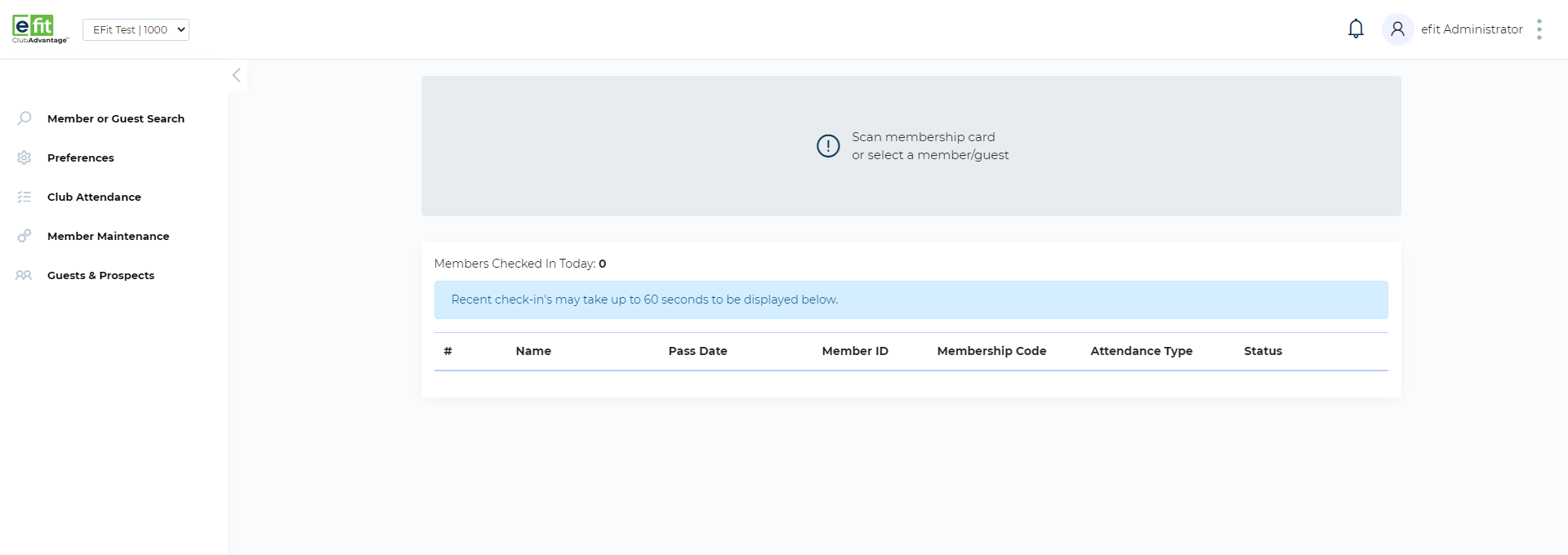
This is the Admin Usermain screen.
When members check in to use the facility or classes it will appear here.
You should see 6 Buttons on the righthand side
Going from Top to Bottom we have as follows:
Log out of FCCS
Member/Guest Search
Preferences
Club Attendance
Member Maintenance
Guests & Prospects
We will be going over each of these in detail within the following sections.
Sign out of FCCS
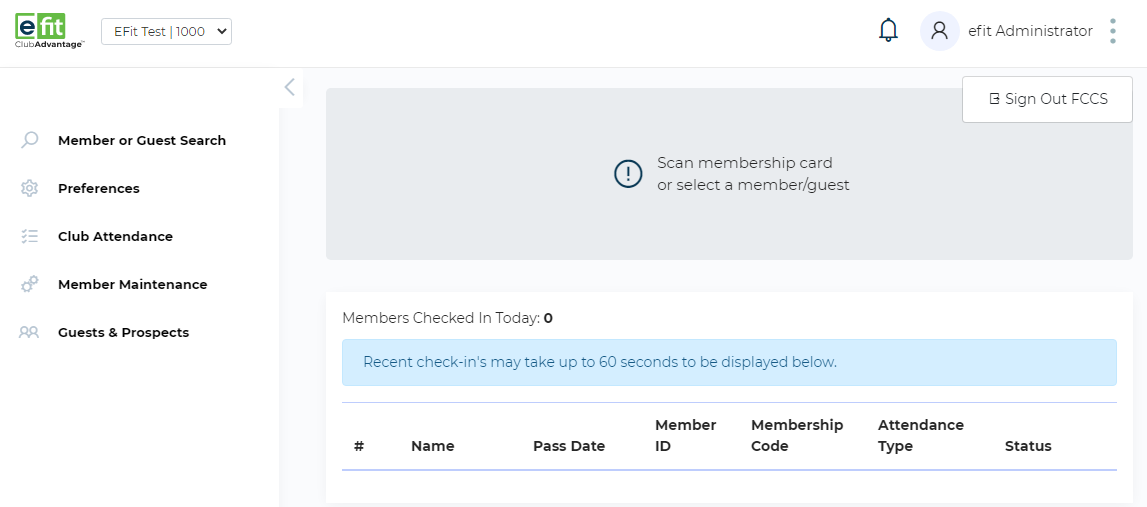
Sign out of FCCS implies exactly that.
It logs you out and turns off theFCCS.
Once logged out, it will forward you back to thelogin screen.
Member Search
When you select the Member/Guest Search Button this screen will appear:
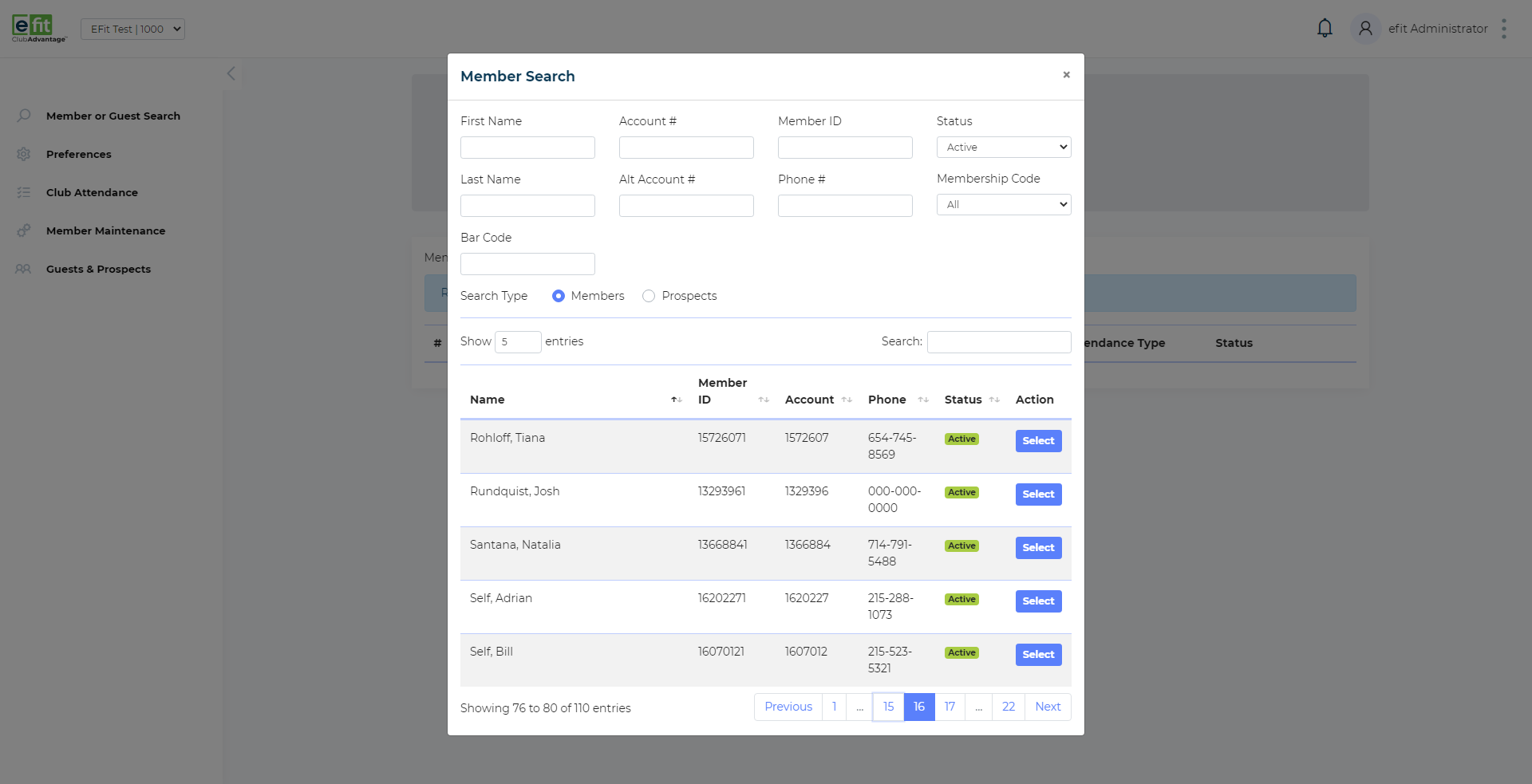
Member/Guest Search allows you to check in members/guests without the use of a Barcode scanner.
Here you can search for any member/guest using their First or Last Name, Account ID, Member ID, Alternate Account ID, or any Phone Numberson file for the member in question.TheStatusDrop Down allows the search criteria to search for onlyActive, Inactive, Pending or All members.Once you have entered the relevant information in the corresponding field, click Search.
If you have a Barcode or Prox card and would like to know whom it is attached to, you can place the number from that card under Bar Codeand clickSearch.
Once the member you are looking for is found, you will be able to click their name.
Example of a non restricted account
This is an example of a successful check in with an account that has no restrictions:

Once you have clicked their name you will be forwarded back to the Main Admin Page with the members information appearing.
Example of a restricted account
This is an example of an account that has a restriction on it. You can notice that under Billing Status it says past due:

Restrictions on an account can be:past due account, non active account, pending account, etc.
You will also notice 2 member messages appearing in red that say: Your Account is restricted from use at this time, and Your account is Past Due. Please see the Front Desk.
If any of these restrictions appear when a member checks in, they should not be given access to the facility and should instead consult with management or staff to discuss their account.
Preferences

Preferences is where you are able to change the notification messages which appear onFCCS, and also the corresponding Audio that plays.
Messages
By default, under the Active Member Message section it says: "Have a great workout". Anyone that checks in and is an active member without restrictions will have that message appear on screen.
If you would like to change that message all you have to do isDelete the current message and type in the message you prefer. Once typed in select the Save FCCS Preferences button below, and that message will be saved.
Audio
Underneath the Active Member Message section is the Check In Successful Audio where the default is: Active Member Female. Anyone that checks in and is an active member without restrictions will activate this audio message, which will play over the speakers that are directly connected to the computer using Live FCCS.
If you would like to change which Audioplays, select the corresponding dropdown list, and a wide range of audio files will appear. You can preview the audio file by selecting it, and then clicking the Play button off to the right.
Once you have decided on a file to use, click the Save FCCS Preferences button to save your adjustments for the Audio.
Club Attendance

The Club Attendance feature is a running list of who has attended the facility in the last 24 hours.
You will be able to see their Name, Pass Date, Member ID, Membership Code and Attendance Type.
This is not a Member Attendance Report. You will still need to go through reports to bring up that information.
Member Maintenance

Selecting the Member Maintenance field without anyone checked in it will bring up Member Maintenance as it normally would in Club Advantage,
If a member has checked in, and they have a restriction on their account, you can select the Member Maintenancebutton which will cause that member's Member Maintenance page to appear.
Member Maintenance has full functionality, so any adjustments saved will appear as they should.
Guests & Prospects

Next up is Guest and Prospect.
If you would like to sign up a Guest/Prospect without going back into Club Advantage, you can select this button, and it will forward you to Guest and Prospect Tracking.
If you would like to find a guest or prospect, you canFind the Guest or Prospectin questionthrough the search function within Guest and Prospect.
It does not have the same functionality as Member Maintenance where a G&P checks in and the members information will appear.
Take a picture 1
When a member checks in and does not have a photo attached to their account this is what it will look like:

If your facility has a Logitech Webcamattached to the computer, you will be able to take pictures of existing members here.
Once a member checks in you can click on the Profile Picture, then select the Take Photo link to begin the process.
Take a picture 2
Selecting Take Photowill cause this screen to appear:

The Camera Preview Area to the left of the is what the picture will look like before you take it.
Once the picture is to your liking, you can then select the Capture Photolink to take the photo.
If you wish to get out of this Camera Preview Area, select the Cancel Photolink.
Take a picture 3
This message will appear once the picture has been captured and attached to that members account:

Take a picture 4
The photo will also appear on the Member Profile page for that member as well off on the top left hand corner:

This completes the Admin User Mode walk through of Live FCCS.
Member Mode
Member Mode is a "light version" of the Live FCCS.
This mode is where members check themselves in, and no other features like in the Admin UserMode are available.
Member Mode’s primary use is for checking members in at a kiosk which is unattended by staff.
This mode is perfect for facilities that have Classes/Activities in rooms. With this mode you can place check in kiosks next to these rooms, which can be left on at all times, and will only allow the act of checking in.
Please note: when using Member Mode, the facility is REQUIRED to have a scanner/PcProx reader, as there is no function to manually check in members. If a member does not have their check in card/keytag they will not be able to check in.
Remember that if at any time you have any questions with the Live Front Counter Check In System (FCCS), or anything else in Club Advantage, please call the eFit Technical Support line (877-772-3348) where our support staff will be happy to assist further!

